

Market bar and Actions
The account orders go to, its funds, whether it can trade now, and the Actions menu that cancels, closes, flattens and hedges. New to these words? See New to trading.
XBARCLOSEFLATAUTOHEDGETrade page footer and + Panel (Market bar); across the top of a trading desk in the Pro terminal
Where it is
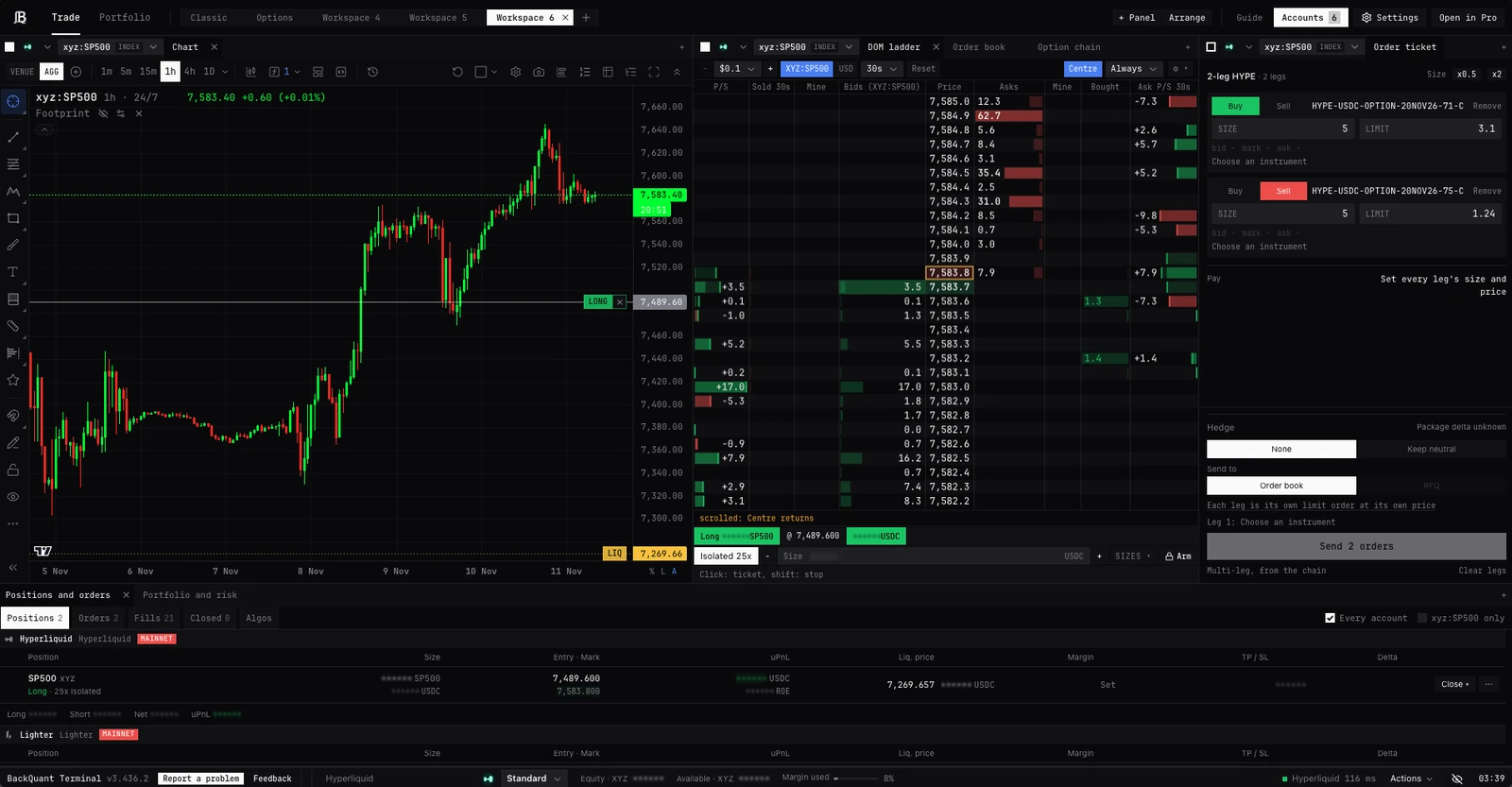
- Trade page footer. Each market panel picks its account and market in its own header, after its colour square. The footer line, from the left: BackQuant Terminal and its version, Report a problem, Feedback, then the account of the panels you last used, its funds, whether it can trade, Actions and the eye, then the clock.
- Market bar. Under + Panel, Market bar puts the full bar back as a panel of its own, with the market picker, the account picker and the account chips. Main panels trade its market and account. Move it, size it, or take it away.
- Pro terminal. A trading desk has the bar across its top. Each trading panel’s header also names its exchange, account and market; choosing them there moves every panel on that link colour.
- Trading desk in Pro. Trade, beside Scripts on the terminal’s strip, offers Trade page or Trading desk in Pro: a Trading tab with one desk and your positions under it, in the desk’s colour, the same tab each time. The trading desk opens ready to trade: on the account the trade page trades, or your only account, once it is listed; on the trade page’s market where the trade page trades that account, else the same coin there (BTC where the trade page has none).
Left to right
- Market
- Market bar only. The picker, then the Mark, and as the bar widens 24h change, funding, next funding, 24h volume and open interest. Amber with Stale when the exchange’s price is not live.
- Account
- On the Market bar, the account picker; Add account... and Manage accounts... open Accounts. On the footer, the account’s name only, or No account chosen. Changing the chart’s market never changes it.
- Account chips
- Market bar, with two or more accounts: one click switches between them; what does not fit is under +N. Switching disarms.
- + Desk
- Pro terminal only. Adds another trading desk to the tab: its own bar, chart, book and ticket, in a link colour of its own. Every trading desk shares one Positions and orders, which lists every account.
- Exchange logo, margin mode
- The exchange’s logo, then its account-wide margin mode where it has one. Each switch asks first, saying what it does to every position.
- Equity, Available, Margin used
- The account’s, as the exchange states them. Margin used turns amber above 50%, red above 80%. Amber figures are as of the time on hover, while the exchange’s stream reconnects. Reading while the first figures load.
- Live, or a reason
- Connected and ready: a dot, the exchange and the round trip in ms; hover for the last order’s answer time. Otherwise the first reason it cannot trade; click it for all of them, and whether cancelling is still possible.
- REST
- Lighter only: its live connection was refused on this network, so the account runs over its REST API (plain web requests instead of a live stream) and updates are slower.
- Actions
- The menu below. Actions (3) counts the working orders, red when there are any.
- Eye
- Hide amounts: sizes, balances and P&L hidden, for sharing your screen.
The Actions menu
Each item asks first or shows its plan first. A count beside the first two says how many orders each would cancel.
- Cancel [market] orders
- Every working order on the bar’s market, stops and take profits included. Running algorithms keep going: stop them on the Algos tab of Positions and orders.
- Cancel all orders
- Every working order on the account: one cancel-all where the exchange takes it, otherwise market by market or order by order.
- Cancel orders and stop algos
- Stops every running algorithm and cancels every working order, stops and take profits included. Positions stay open.
- Cancel limit orders only
- Resting limits you placed directly. Stops, take profits and algorithms stay.
- Close a position...
- Opens Close a coin: every position in one coin, on the accounts you tick (below).
- Flatten now: cancel all, close each position at once, no worse than 2% from the mark
- Stops every algorithm and cancels every order, then closes every position from the account’s checked positions: one reduce-only immediate order each, no worse than 200 bps from the mark. A position the exchange states differently is not closed, and says so.
- Flatten at the touch: cancel all, close with limits
- Stops every algorithm and cancels every order, then closes each position with a reduce-only limit at the touch, immediate where the exchange allows. What does not fill stays open.
- Auto-hedge...
- Starts or steers an Auto-hedge on the account: it keeps a coin’s delta within a band by trading a perpetual, future or spot pair. On Hyperliquid and Deribit accounts. Elsewhere it reads Auto-hedge (Hyperliquid and Deribit for now), greyed, and its hover says to open Auto-hedge on your Hyperliquid account with this one ticked; a Deribit account can count it the same way. See Auto-hedge: keep a coin neutral.
- Cancel on disconnect
- Where the exchange has the switch: on, paused, refused or checking, as the exchange answered. Hover for what it covers.
Before it sends
Every plan lists the positions and each step it will send, in order, confirmed by its own button: Enter does not confirm. After sending it shows each step’s outcome, and what is still open.
Close a coin
From Close a position..., or CLOSE BTC. Closes every position in one coin, on the accounts you tick, each from its own checked positions with one reduce-only immediate order per position. Running algorithms and auto-hedges on those markets are stopped first. What does not fill stays open: nothing is retried. An account whose positions changed since the preview is refused whole, and says so.
- Coin
- Default the bar’s.
- No worse than bps from the mark
- The bound on each close. Default 100, from 1 to 5000.
- Perpetuals and futures, Options
- What it closes. Both on by default.
- Cancel their working orders first
- On by default: the orders it will cancel are listed before you confirm.
- Accounts
- One tick per account; the bar’s is ticked.
Commands
- XBAR
- The market bar as a panel.
- CLOSE BTC
- Close a coin, for BTC. The trading desk moves to that coin’s market.
- FLAT
- Flatten at the touch, with its plan first: limits at the touch, so what does not fill stays open. To be flat now, use Actions, then Flatten now.
- AUTOHEDGE
- Auto-hedge on the open trading desk’s account. HEDGER does the same.
- EXEC
- A trading desk in a new tab: the bar, chart, DOM ladder, Order ticket, Trades and Positions and orders, linked. No account is chosen.
- EXEC OPTIONS
- A trading desk laid out for options: the bar, Option chain, Order ticket, Order book, Positions and orders, smile, Structures, Block RFQ and Portfolio.
Clearing out fast
- 01Open Actions on the bar or the footer.
- 02To stop new fills but keep the positions: Cancel all orders, or Cancel orders and stop algos if algorithms are running.
- 03To be flat now: Flatten now. Read the plan, then press its own button.
- 04To be flat without crossing the spread: Flatten at the touch, then check what stays open.
- 05To close one coin across several accounts: Close a position..., tick the accounts, set the bound, confirm.
Good to know
- Cancelling may still work when trading is not ready. A cancel, close or flatten asked for while the account connects is held and sent once it is ready.
- Keep tab open. Shown while this browser runs algorithms, watched stops or auto-hedges on the account: the exchange does not hold them. Hover for what runs and what happens if the tab closes.
- The reload cancelled. Orders a reload cancelled before they began are listed, to place again if still wanted. Seen clears it.
- Stop at risk on disconnect. A stop or close is working while the exchange’s cancel-on-disconnect switch is still on. It clears once the switch is confirmed off.
- Trade from this device. When another device trades the account, this one watches. Pressing it takes the account over: algorithms and auto-hedges there pause and their orders are withdrawn; plain orders stay. It needs a sign-in in the last 10 minutes.
- Report a problem. On the trade page footer: sends what you were doing (the exchange, the market, the connection) with your words. Never a key.
Questions
Where did the account picker go on the trade page?
Each panel chooses its own account in its header. The footer names the account its figures are, the one of the panels you last used. Add Market bar from + Panel for the full bar with its picker.
Does Cancel all orders stop my algorithms?
No. Use Cancel orders and stop algos, or stop them in Algos.
What is the difference between Flatten now and Flatten at the touch?
Flatten now closes each position at once, no worse than 2% from the mark. Flatten at the touch rests reduce-only orders at the touch: cheaper, but what does not fill stays open.
Why is Auto-hedge greyed?
It starts on Hyperliquid and Deribit accounts only. To keep a position elsewhere neutral, open Auto-hedge on your Hyperliquid or Deribit account and tick the other account.
Why are my balances amber?
The exchange’s stream is reconnecting: the figures are as of the time on hover.
More
- Close a position or get flat. Step by step.
- Auto-hedge: keep a coin neutral. Starting Auto-hedge from Actions.
- How exits, closes and rolls work. What each close and flatten sends, in order.