

Trade pad
The DOM’s trading controls in a panel of their own: leverage, size, Arm, market buys and sells, Close, Reverse and Cancel. Put it beside a chart, under the book, or on a second screen. New to these words? See New to trading.
XPADTrade page (+ Panel, Trade pad) and Pro terminal
What it is for
One-click buttons without a ladder. The pad trades the panel’s market through the same controls as the DOM, with the same size and the same Arm: arming the pad arms the DOM and the chart on that market too.
Its buttons are large by default, so it suits a chart-first layout where you trade at market and manage the position, and leave resting orders to the chart or the DOM.
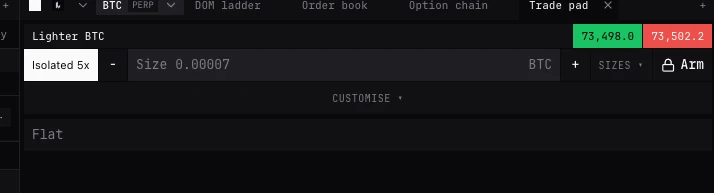
Top to bottom
- Heading
- The exchange and market, then the bid in green and the ask in red.
- Leverage
- On perpetuals and futures where the exchange sets leverage per market: Cross 20x or Isolated 5x, filled white until you have opened it once on this market. Opens the leverage window.
- Minus, Size, Plus
- The size, shared with the DOM and the ticket. The placeholder is the smallest order; minus and plus step it.
- Sizes
- Quick sizes, about $100, $1k, $10k and $100k at the price (right-click one to change it), the step for minus and plus, and the unit, the coin or the quote currency (not on inverse contracts).
- Arm, Armed
- The padlock. Arming asks every time.
- Customise
- On its own row: what the armed buttons show, their size and their colours (below).
- Buy, Sell
- Armed. The size at market, no worse than the ticket’s slippage from the touch (Deribit and Binance take no cap on a market order). Hover for the touch each meets now.
- Position line
- Long or Short and the size, @ the average entry, and unrealised P&L at the live mark; Flat with none. Your resting bids and asks are counted where no Cancel button already counts them.
- Close
- Armed, in white. The whole position on this market at market, reduce-only.
- Reverse
- Armed. The position closed at market, reduce-only, then the same size the other way once it has filled whole and shows flat. Nothing opens if the close does not fill whole and show flat within 15 seconds.
- Cancel, Cancel N
- Armed. Your resting bids and asks on this market. Stops and take profits stay.
- Status line
- Locked it reads Arm to trade from here; armed, Armed: the buttons here send at once. Then each result with its time: green sent, red refused, amber not sent or unknown, and a question with its button and Keep.
Customise
- Trading controls, when armed
- Buy and sell at market, Close and reverse, Cancel. Each on or off; all on by default.
- Trading controls size
- Small, Medium or Large. Large by default on the pad.
- Trading button colours
- Buy, Sell, Close, Reverse and Cancel: the theme’s, a preset, or any colour. The words turn black or white to read on it.
- Trading controls back to the default
- All of the above put back.
Trading from it
- 01Add Trade pad from + Panel and choose its account and market in its header, or link it to the colour of the chart or DOM you trade.
- 02Check the leverage and set the size.
- 03Press Arm, and confirm.
- 04Buy or Sell at market. Manage the position with Close or Reverse, and clear resting orders with Cancel.
- 05Press Armed to lock it.
Good to know
- A button with nothing to act on keeps its place, dimmed, and says why on hover.
- After a Close or Reverse, neither sends again until the position changes or 8 seconds pass.
- A Close pressed while the account reconnects is held and sent once it is ready.
- Hotkeys act on the market whose pad or DOM ladder you last clicked. The list is on DOM ladder; turn them on in Trading settings, Hotkeys.
- On an exchange that does not set leverage per market, or on spot, there is no leverage button.
Questions
Can the pad rest a limit?
Not from a button: Buy and Sell are at market. Rest limits from the DOM, the chart, the ticket, or the hotkeys Buy at the bid and Sell at the ask.
Does arming the pad arm the DOM?
Yes. Arm is per market: the DOM, the pad and the chart on that market arm and disarm together.
Is the pad’s size separate from the ticket’s?
No. One size per market, typed in any of them and shown in all.
Where are Buy and Sell?
They show only while armed, and only if Buy and sell at market is on in Customise.
More
- DOM ladder. Every column, click and hotkey.
- Trade from the DOM or chart. Step by step.