

DOM ladder
The exchange’s book as a price ladder, with your orders, stops, entry and liquidation on their rows. Locked, a click loads the ticket. Armed, a click sends. Not the DOM command (Depth of Market), which is market data and does not trade. New to these words? See New to trading.
XDOMTrade page (+ Panel, DOM ladder) and Pro terminal
What it is for
The DOM is the book of the exchange your account trades on, for the panel’s market, drawn as a ladder of prices: perpetuals, futures and spot pairs. It shows what rests at each price, what traded there, what was pulled or stacked, and BackQuant’s volume and key levels beside them, with your own orders on their rows.
From it you place limits with a click, stops and take profits with a shift-click, cancel your orders with a click and move them with a drag, and close, reverse or clear the position from under the ladder. Options trade from the option chain: on an option the DOM reads Options trade from the chain.
Arm
- Arm is the padlock at the end of the order bar, on the DOM and on the trade pad. Locked, it reads Arm; open, in white, it reads Armed. It arms everything on that market: the DOM, the trade pad and the chart that share it.
- Arming asks every time. While armed, most clicks send at once with no confirm: a click on a row of the DOM or a price on the chart, and the Buy, Sell, Close, Reverse and Cancel buttons. It still asks before a limit at or through the touch (it would take the market), a stop that would fire at once or sits within three ticks of the price, cancelling or moving a stop or take profit, and a close from the chart’s x. A click more than 2% through the market goes to the ticket instead. Locking it again never asks.
- It stays armed until you lock it or switch account. A reload, a new tab or a new trading desk always starts locked.
- Trade, on the Pro terminal’s DOM. The DOM panel of the Pro terminal (the DOM command, Depth of Market) is market data. Beside a trading desk whose account trades that coin, its toolbar shows Trade: it arms that trading desk on the DOM’s market, and the ladder becomes the exchange’s book with the order bar. Lock it with the Armed padlock to read it as before.
The toolbar
Across the top, left to right. On a narrower DOM the least used give way first (the column switches, then Reset, the window and the follow mode, then the unit); the gear keeps every one of them.
- Minus, step, plus
- Price grouping. Minus is a finer step, plus a coarser one; the list between them picks any. Bids round down to the step, asks round up, as on the exchange. Until you choose one, the ladder takes the finest step at which the book’s first ten levels a side fill about the rows on screen, and keeps it for that market.
- Coin, USD
- Sizes on the ladder in the coin or in dollars. Default the coin.
- 10s, 30s, 1m, 5m
- The window for Sold, Bought and the pull and stack columns. Default 30s.
- Reset
- Clears Sold, Bought and pull and stack.
- Traded, P/S, Vol, Levels
- Turn their columns on and off: Sold and Bought, pull and stack, today’s volume at price, and key levels. All on by default.
- Centre
- Lit once the wheel has scrolled the ladder away from the price: brings it back and follows again.
- Middle, Always, Edge
- How the ladder follows the price: recentred once the price leaves the middle half (Middle, the default), on the centre row always, or only near an edge.
- +N cols
- Columns that do not fit this width: widen the panel to see them. A narrow DOM keeps the book and your orders first.
- Gear
- The settings, in four tabs (below).
The columns
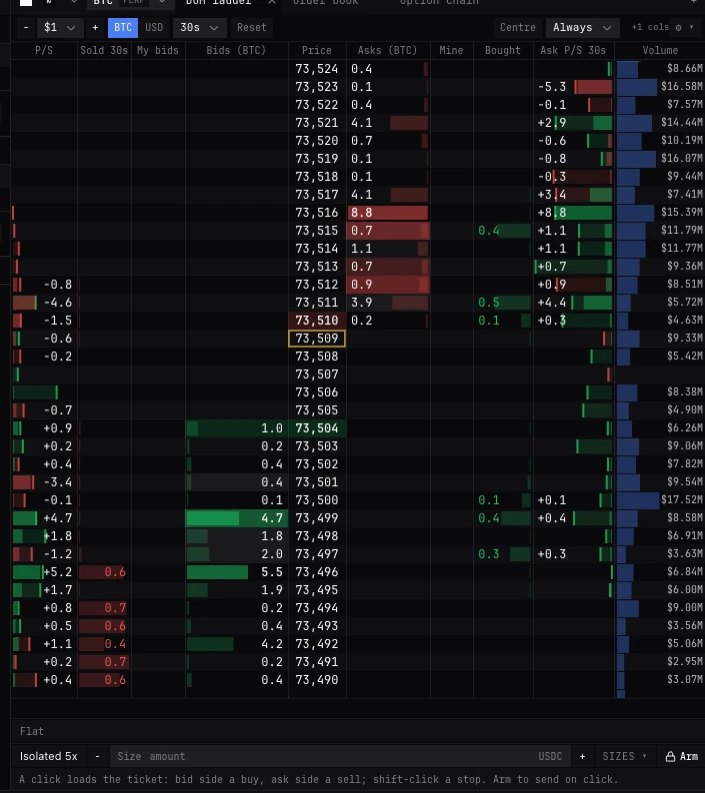
Left to right by default: Bid P/S, Sold, My bids, Bids, Price, Asks, My asks, Bought, Ask P/S, Volume, Levels. Right-click a title to hide that column, show every hidden one, or put them back in order. Drag a title to move its column; drag the line between two titles to resize.
- Price
- Always shown. Green below the market, red above it. The last trade’s row is outlined.
- Bids, Asks
- The exchange’s resting size at each row, with bars. The best bid and ask are lit.
- My bids, My asks
- Always shown on a trading DOM: your resting size at each row. A stop or take profit shows there in an amber box as S and its size. An algorithm’s orders show here too but are managed on the Algos tab of Positions and orders.
- Sold, Bought
- Taker trades at each price over the window.
- Bid P/S, Ask P/S
- Pull and stack: resting size added (+) or cancelled (-) at each price over the window, fills left out. The faint bar marks the window’s peak.
- Volume
- BackQuant’s data, not the exchange’s: today’s traded volume at each price across perpetual venues.
- Levels
- BackQuant’s key levels at their rows, the same as the chart’s Key levels: dealer positioning, market profile, prior ranges and liquidation clusters. On a spot book they are the perpetual’s prices, a basis away.
- TP, SL
- At the start of the price cell: your take profits and stops at their trigger rows.
- Outlined price
- Your average entry.
- Dashed amber line
- Your liquidation price.
- Dashed line
- Today’s VWAP (UTC day), named dVWAP on hover, while daily VWAP is on in the gear’s Levels tab.
- Dimmed rows
- Past the depth the exchange sends: more may rest there.
- Hover a row
- Its price, bid and ask size, bought and sold, pull and stack with the window’s peak, and any level there, in the line under the ladder.
The gear
- Trading
- Trading controls, when armed: Buy and sell at market, Close and reverse, Cancel, each on or off (all on). Trading controls size: Small (the DOM’s default), Medium or Large. Order bar: Above the ladder (default) or Below the ladder. Trading button colours for Buy, Sell, Close, Reverse and Cancel: the theme’s, a preset or any colour. Trading controls back to the default puts all of it back.
- Columns
- Groups of columns (sold / bought, pull / stack, volume today, key levels), each column on its own, reset column widths and reset column order.
- Levels
- Daily VWAP, dealer positioning, market profile, prior ranges and liquidation clusters. All on by default.
- Look
- Pull / stack drawn as numbers on bars (default), numbers only or bars only. Size decimals: auto (3 below 100, 1 below 1,000, none above, the default), 0, 1, 2 or 3. Text: size from 80% to 160%, and colours for the price, bid sizes, ask sizes, other columns, bid bars and ask bars; reset text puts them back.
The order bar
Above the ladder by default. The same bar is the trade pad.
- Leverage
- First on the bar, on perpetuals and futures where the exchange sets leverage per market: the market’s margin mode and leverage at the exchange, as Cross 20x or Isolated 5x. Filled white until you have opened it once on this market, so you see it before the first order. Opens the leverage window. While it is read again, the last reading shows greyed.
- Minus, Size, Plus
- The size, shared with the ticket: one size per market. The placeholder is the smallest order. Minus and plus step it by the chosen step.
- Sizes
- Quick sizes, about $100, $1k, $10k and $100k at the price as round numbers (right-click one to change it); the step for minus and plus; and the unit, the coin or the quote currency (not on inverse contracts). Typed in the quote currency, a click turns it into the coin at that row’s price, rounded down to the size step.
- Arm, Armed
- The padlock: one-click trading off or on.
- Buy, Sell
- Armed, on a row under the bar, with the size on them. The size at market, no worse than the ticket’s slippage from the touch (Deribit and Binance take no cap on a market order).
Clicking the ladder
- Click, locked
- The bid side (Bids or My bids) loads a buy limit at that row into the ticket, the ask side a sell limit. Nothing is sent.
- Click, armed
- Sends that limit at the DOM size, at once. More than 2% through the market it is never sent from a click: it goes to the ticket to check. A limit at or through the touch would fill at once as a taker, so it asks first: Buy now or Sell now, or Keep.
- Shift-click
- A trigger at that row’s price, at the DOM size, on the column’s side: the bid side buys, the ask side sells. Above the price a buy is a stop and a sell a take profit; below it a sell is a stop and a buy a take profit. Reduce-only where it closes your position and is no larger; otherwise it reads Buy if touched or Sell if touched. Locked, it loads the ticket.
- Shift-click, armed
- Sent at once against a live price. It asks first if it would fire on arrival, is three ticks or less from the price, or could open a position the other way. With no live price, or the position still loading, it is not sent and says why.
- Your order
- Click it in My bids or My asks to cancel it; drag it to another row to move it. Locked, both ask first. Armed, a cancel goes at once unless a stop or take profit is among them, and a move asks if it would fill or fire at once.
- Double click
- Sends once: the same click within 0.4 s is not sent again.
Under the ladder
- Position line
- Long or Short and the size, @ the average entry, unrealised P&L from the entry at the live mark, and your resting bids and asks (only the sides that have any) where no armed Cancel already counts them. On a narrow DOM the entry and that count are hidden rather than cut. Flat with no position.
- Close
- Armed, in white. Closes all of the position on this market at market, reduce-only. Your other markets are not touched.
- Reverse
- Armed. Two steps, with no confirm: the whole position closed at market, reduce-only; then, only once that close has filled whole and the position shows flat, the same size the other way at market, no worse than the ticket’s slippage. Long 3 becomes short 3. If the close fills in part, is held for later, or has not shown filled and flat within 15 seconds, nothing is opened, and the status line says so. It does not change your stops or take profits.
- Cancel, Cancel N
- Armed. Your resting bids and asks on this market. Stops and take profits stay. One side alone: the ✕ 2 bids or ✕ 1 ask button over the My bids or My asks title.
- Nothing to act on
- The button keeps its place, dimmed, and says why on hover.
- No second press
- After a Close or Reverse is sent, none of them, nor a close of half or a quarter by hotkey, sends again until the position changes or 8 seconds pass. A Reverse that sent nothing frees them at once.
- Not ready for a moment
- A Close, or a close of half or a quarter by hotkey, pressed while the account reconnects is held and sent once it is ready.
- Status line
- What happened, with its time: green sent, red refused, amber not sent or unknown. A question waits there with its button and Keep. Idle, it says what a click does.
- Each order followed
- An order sent from the DOM is followed to its end, and the status line then says how it ended: filled, part filled, cancelled, or refused in the exchange’s own words. One the exchange has not answered after 15 seconds reads as not answered yet, checking. A newer line, or a switch of market or account, is never overwritten by an older order’s end.
- Outcome unknown
- The DOM, the pad and the chart send nothing new until you check orders and positions and press I have checked.
Trading from it
- 01Choose the account and market in the panel’s header (on the trade page, after its colour square).
- 02Check the leverage on the order bar and set the size, or pick a quick size under Sizes.
- 03Locked, click a row to load that limit into the ticket and send it there. To trade from the ladder itself, press Arm and confirm.
- 04Armed, click a bid row to rest a buy there, an ask row to rest a sell. Shift-click a row above or below the price for a stop or take profit.
- 05Drag one of your orders to move it; click it to cancel it.
- 06Close, Reverse or Cancel from under the ladder. Press Armed to lock it again.
Hotkeys
Off until you turn them on with the Hotkeys on switch, in Trading settings, Hotkeys. Click a key there, then press the one you want; Backspace clears it, Escape keeps it, Reset keys puts them all back. They are kept on this device. A key acts on the market whose DOM, trade pad or panel you last clicked, through its DOM or pad, as its button would. Never while typing, with a window open, held down, or with Ctrl, Cmd or Alt.
- B: Buy at the bid
- A buy limit at the best bid, the DOM size. Locked: loads the ticket.
- S: Sell at the ask
- A sell limit at the best ask, the DOM size. Locked: loads the ticket.
- Buy one tick over the bid, Sell one tick under the ask
- No key at first. A limit one tick better than your side’s touch (at the touch where the spread is one tick), the DOM size. Locked: loads the ticket.
- Buy at the ask, Sell at the bid
- No key at first. A limit at the other side’s touch, never worse. Locked: loads the ticket. Armed, it asks first, as any limit at the touch does.
- Shift+B, Shift+S: Buy at market, Sell at market
- The DOM size at market. Armed only.
- C: Cancel resting orders
- Every resting limit on this market. Stops stay. Armed only. Cancel resting buys and Cancel resting sells, one side each, start with no key.
- F: Close position
- Close the position at market, reduce-only. Armed only.
- Shift+R: Reverse position
- As the DOM’s Reverse. Armed only.
- Close half the position, Close a quarter of the position
- No key at first. That share at market, reduce-only, rounded down to the size step, so never more than you hold. A share under the market’s smallest size or order value is not sent: close the whole position instead. Armed only.
- Stop loss to breakeven
- No key at first. The position’s stop loss moved to its entry, as Stop at breakeven in Positions and orders does it, with its one confirmation: never loosened, never a second stop. Armed or not. It runs from a Positions and orders panel showing that account’s positions; with none open, it says so.
- Cancel stops and take profits
- No key at first. Every stop and take profit standing on this market, not yet fired. Resting limits stay, and so do the exchange’s own TP/SL on the whole position, the stops BackQuant watches for you (stop them in Algos) and an algorithm’s orders. Armed only.
- Shift+A: Arm or disarm
- This market’s one-click trading, on or off. Arming on real money still asks.
- Hold, click the chart: buy there, sell there
- No key at first. Held, not pressed: see Trading on the chart.
While the account connects
On a fresh open, the DOM shows the market it last showed for that account as a plain book from the exchange’s live public feed, headed Book, public while connecting, under the connecting line. Nothing there sends. The account’s own ladder takes its place once it is in. A market opened from the watchlist on an exchange with no account here shows the same plain book, headed Book, viewing.
By exchange
- Leverage
- On the bar only where the exchange sets leverage per market, and only on perpetuals and futures.
- Moving an order
- Where the exchange cannot move an order or a stop, the drag is not sent: it says to cancel it and place it again. Where only some on a row can move, it asks and says which stay.
- Stops
- Where the exchange takes no stop on that market, a shift-click says so. Where it holds no resting reduce-only stop (Derive), the stop is watched by BackQuant while any BackQuant tab in this browser is open and fires as a limit; it is listed on the Algos tab.
- Position TP/SL
- The exchange’s own TP/SL on the whole position (Hyperliquid, Bybit, OKX and Binance futures) are never cancelled from the DOM or its hotkeys: change them from the position’s TP / SL in Positions and orders.
- Volume, Levels
- On BTC and ETH perpetuals and spot (not dated futures), on any exchange. What the free plan shows is on Free plan.
- Reverse
- Perpetuals and futures, where the exchange takes reduce-only orders. Elsewhere it says why and sends nothing.
Questions
I clicked a row and nothing traded.
The DOM was locked: the order is in the ticket, and the status line says so. Send it from the ticket, or press Arm to trade on a click.
I clicked far through the market and it went to the ticket.
A click more than 2% through the market is never sent from the ladder. Check it in the ticket and send it there.
Why did a click at the ask ask me first?
A buy at or above the ask fills at once as a taker. It asks Buy now or Keep so a click meant to rest does not take the market.
Does Cancel remove my stops?
No. Cancel and C take your resting limits only. Use the hotkey Cancel stops and take profits, the Actions menu, or the stop’s own row.
Where is the size kept?
One size per market, shared by the DOM, the pad and the ticket. The quick sizes, step and unit are kept per panel and market.
Why are the Volume and Levels columns missing?
They show on BTC and ETH perpetuals and spot only, and only where Vol and Levels are on. On the free plan, see Free plan.
The status line is amber and nothing sends.
An order’s outcome is unknown. Check your orders and positions, then press I have checked.
More
- Trade from the DOM or chart. Arming and one-click trading, step by step.
- Trade pad. The same buttons without a ladder.
- Trading settings. Hotkeys and confirmations.
- How exits, closes and rolls work. What Close and Reverse send, and the one-click safety checks.