

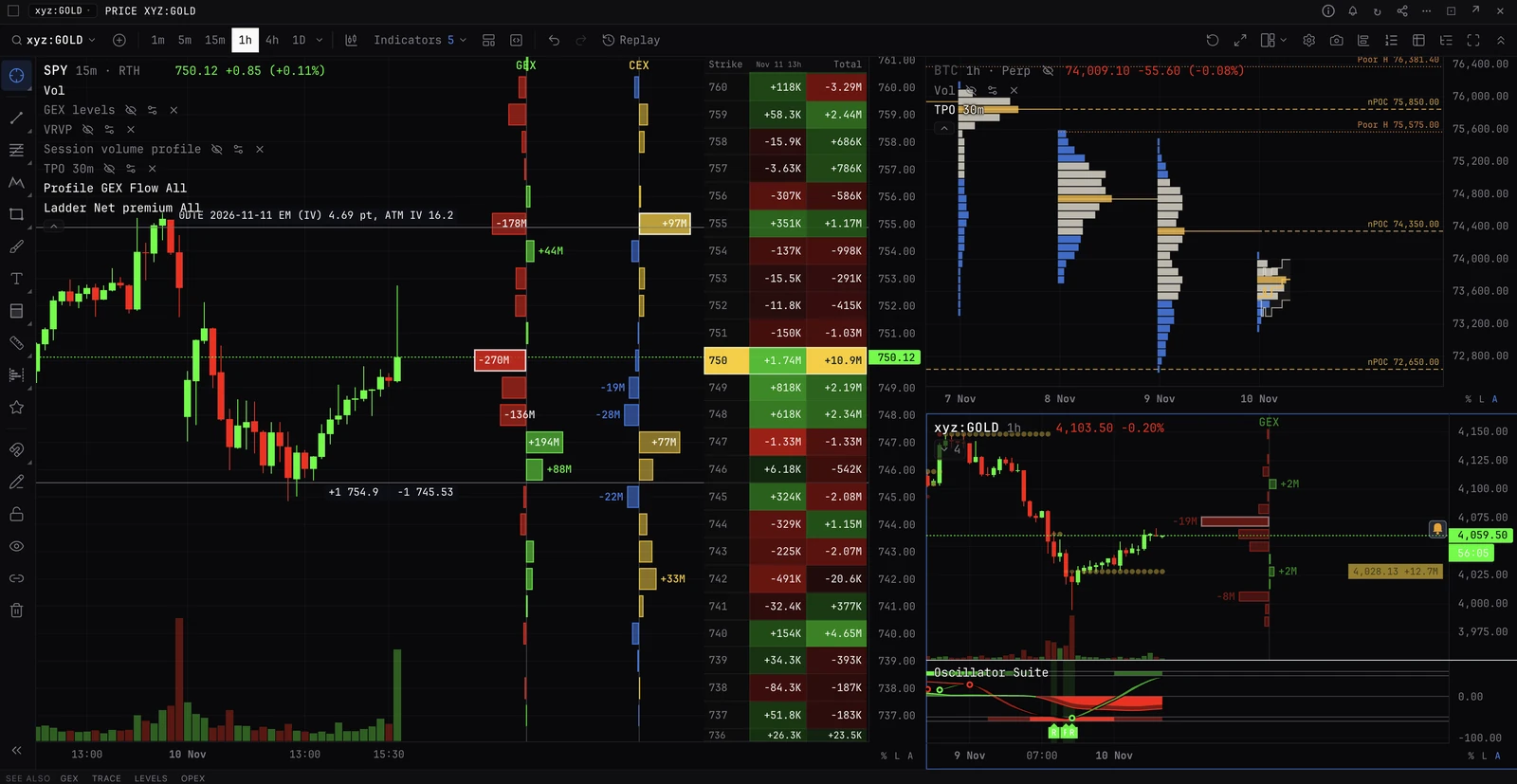
Trading on the chart
Your orders, stops, take profits, position and liquidation drawn at the exchange’s prices, and trading from them: drag, cancel, hold a key and click, or right-click a price. New to these words? See New to trading.
EXECTRADEThe Chart on the trade page, and the chart on a trading desk in the Pro terminal
What it is for
Managing a position where you read the market. Every working order and exit sits on the chart at its exchange price, and moves, cancels and new exits are made by hand on it. Arm on the DOM or the trade pad of that market decides whether the chart sends at once or asks first.
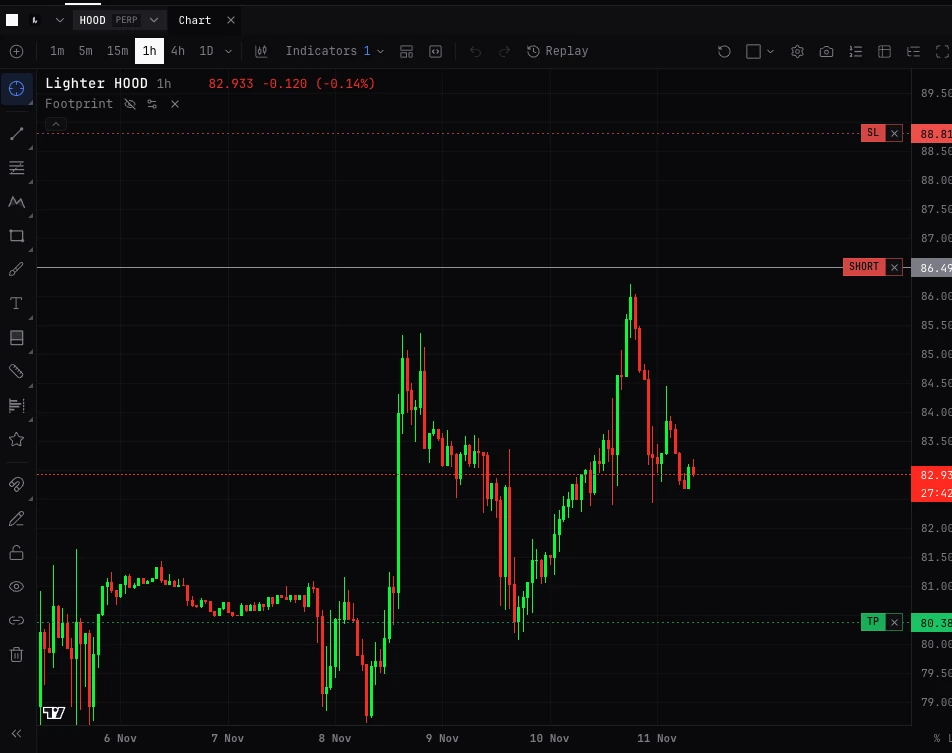
The lines
- BUY, SELL
- Your working orders, dashed green or red, with their size. (algo) marks an algorithm’s order; (fired), a stop that has triggered. Amber with unknown: its outcome is not known, and it cannot be moved.
- SL, TP
- Your stops in red and take profits in green, finely dashed.
- TP on fill, SL on fill
- Exits attached to an entry that has not filled. They move and cancel with the entry, not alone.
- SL position, TP position
- The exchange’s own stops on the whole position (Hyperliquid, Bybit, OKX and Binance futures), set from the position’s TP / SL in Positions and orders, or in the exchange’s app. Shown, never moved or cancelled here.
- LONG, SHORT
- Your position at its average entry, a solid line, with its size and P&L.
- LIQ
- Your liquidation price, dotted amber.
- OCO A, OCO B
- The two sides of a one-cancels-the-other pair of entries (OCO, + Other side in the ticket). A side BackQuant watches, rather than one resting at the exchange, is drawn at its trigger and reads watched. A pair is changed by cancelling it and placing it again.
- LADDER FIRST, LADDER LAST
- The ticket’s ladder before it is sent, the rungs between them faint. Drag an end to set the ladder’s first or last price in the ticket. Nothing is sent.
- Arrows
- Your fills: up under the bar for a buy, down over it for a sell.
What you can do
- Drag an order
- Moves it. Locked, or if it would fill or fire at once, the line waits where you dropped it: Move or Keep. Where the exchange cannot move a stop, it says to cancel it and place a new one.
- x on an order
- Cancels it. Locked, it asks first.
- x on the position
- Closes it at market, reduce-only. Always asks, even armed: Close at market or Keep.
- Drag from the position
- The position line stays at its entry; a TP or SL line follows the pointer, with how far it is from the entry and what the whole position makes or loses there. Past the mark on the position’s side it is a take profit, on the other side a stop loss. Let go: armed, it is placed at once; locked, it waits there: Place or Keep. One that would fire at once goes to the ticket.
Hold a key and click
Give Hold, click the chart: buy there and Hold, click the chart: sell there a key each in Trading settings, Hotkeys (they start with none), and turn hotkeys on. Hold the buy key and click a price: below the market it places a buy limit there, above it a buy stop where the exchange takes one; the sell key the other way round. At the ticket size. Armed, with a live quote and no take profit or stop attached in the ticket, it is sent at once when it is safe to; otherwise it goes into the ticket and the chart says why. It never sends a limit that would take the market. A double click places once.
Right-click a price
- Buy limit at, Sell limit at (ticket)
- Loads it into the ticket. Nothing is sent.
- Buy stop at, Sell stop at (ticket)
- Where the exchange takes stops: a buy stop above the market, a sell stop below, loaded into the ticket.
- Load take profit at, Load stop loss at
- With a position: loads an exit that closes it into the ticket.
- Buy [size] at [price] now, Sell [size] at [price] now
- Armed, with a size in the ticket, a live quote, and no take profit or stop attached in the ticket: sends that limit at once. Checked again as you pick it: one that would now take the market goes into the ticket instead.
- Buy stop, Sell stop [size] at [price] now
- Armed, when it would not fire on arrival, is more than three ticks from the price, and cannot open a position the other way.
- Take profit at, Stop loss at [price] now
- Armed, with a position, when it would not fire on arrival: sends at once.
VENUE and AGG
- VENUE
- The exchange’s own candles: the ones your orders fill against. Default on Hyperliquid, Lighter and RISEx.
- AGG
- BackQuant’s aggregate of the coin across venues, for footprint, order flow and BackQuant’s studies. Default elsewhere, where BackQuant has the coin. Your orders are still drawn at the exchange’s prices.
- ODDS, and the coin
- On a prediction market the two become ODDS (the side’s price over time) and the coin it is on, with the level that decides it.
- Studies
- On the exchange’s candles, an indicator of BackQuant’s data draws only once you add it there.
Using it
- 01Open the trade page (TRADE) or a trading desk in the Pro terminal (EXEC). The chart follows the market chosen in its header or the bar.
- 02Arm the market on its DOM or trade pad if you want the chart to send at once. ARMED shows at the chart’s bottom left.
- 03To protect a position, drag from its LONG or SHORT line to the price you want and let go: past the mark on its side it is a take profit, on the other side a stop.
- 04Drag any order or exit to move it; press its x to cancel it.
- 05Right-click a price to load a limit, stop or exit into the ticket, or, armed, to send one now.
Good to know
- ARMED. Shown at the bottom left of the chart while the market is armed. Arming itself is on the DOM or the trade pad.
- Notices. Also at the bottom left: a move or exit waiting for your yes, the lock after an outcome nobody can vouch for (I have checked), and Candles stopped when the chart’s feed stops while the exchange is live: your lines are still at the exchange’s prices, so reload the chart.
- Opens at once. An exchange chart draws at once from the candles this device kept on your last visit, where they are recent enough to meet the exchange’s own, marked Last seen 5 min ago, not live yet, until the exchange’s own candles land over them. On the trade page the chart draws the market it last drew for that account without waiting for the account to connect. Scrolling back past the first candles loads older ones; what the free plan shows is on Free plan.
- Layout. Layout on the chart’s toolbar splits it into up to eight charts, each with its own market and timeframe. The first follows the panel’s market.
- Prediction markets. The position line cannot be dragged into a stop: they take none.
Questions
Why did my drag not move the order?
It was locked, or the move would fill or fire at once: the line waits where you dropped it with Move or Keep. Where the exchange cannot move that order, it says to cancel and place it again.
Why does closing from the chart ask even when armed?
The x on the position closes all of it at market. That always asks: Close at market or Keep.
My orders sit off the candles.
You are on AGG, BackQuant’s aggregate. Orders are drawn at the exchange’s prices; press VENUE to see the candles they fill against.
Can I move the exchange’s own position stop here?
No. SL position and TP position are shown only. Change them from the position’s TP / SL.
More
- Trade from the DOM or chart. Step by step.
- Set a stop and take profit. Exits from the chart and the ticket.
- DOM ladder. Arm, which decides whether the chart sends at once.