

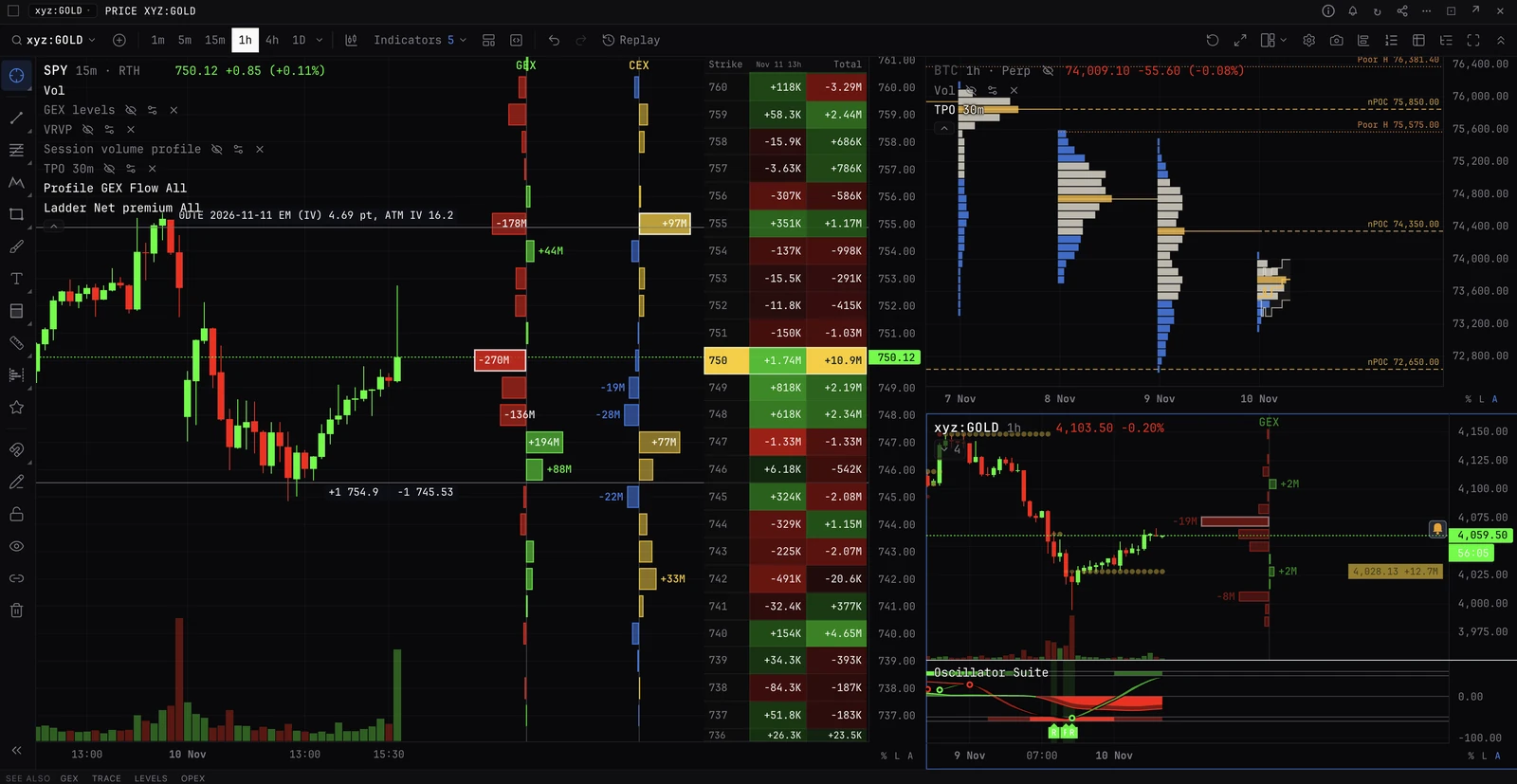
Saved views and workspace commands
Commands that arrange your workspace: save and load views, tile or clear panels, lock the layout, switch between grid and free panels, and open desks other traders share (HUB).
LAYOUTSAVECLEARTILEGRIDFREELOCKUNLOCKHUBThe active workspace tab.
Typing it
LAYOUT[Name]>SAVEmorning
Saves the current workspace tab as a view named MORNING, which LAYOUT morning brings back.
How they work
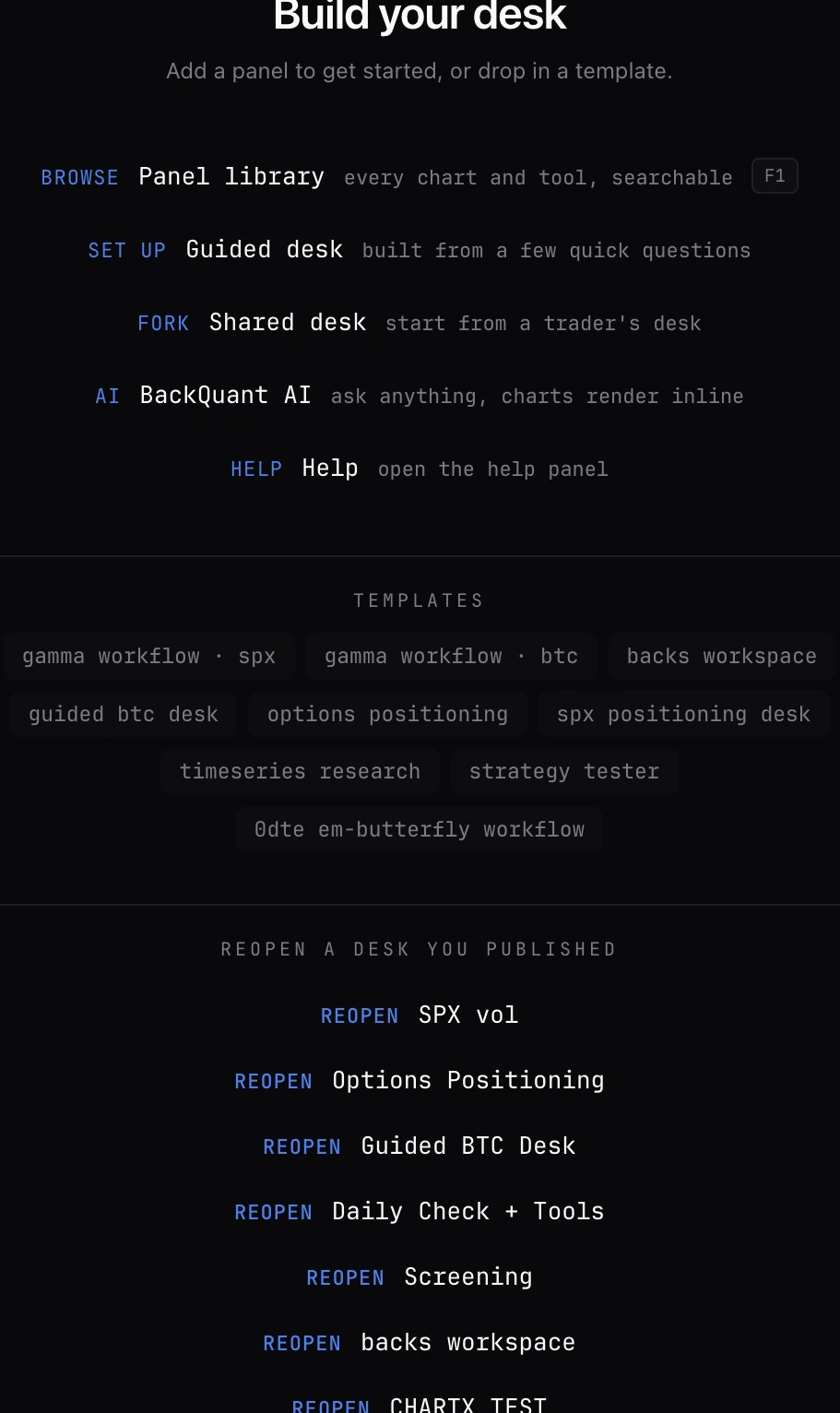
- Adding panels. Type a command, or pick one from Browse (F1). Drag a panel to move it, resize it, double-click its header to maximize it, and right-click for split, duplicate or pop-out.
- Views. A saved view is a copy of the workspace tab: its panels, their settings and the layout. Loading one replaces the panels on the current tab; undo brings them back. Saving under an existing name replaces it.
- Grid and free. Grid packs panels into rows automatically. Free lets them float and overlap. The choice is per workspace tab.
- Lock. A locked layout cannot be dragged or resized, so a click on a panel never moves it.
- Settings. Saved Views, the panel layout and Lock layout are also in SETTINGS, where a view can take a name with spaces and be copied as JSON to move it elsewhere.
Commands
- SAVE name
- Save the current workspace tab as a view. The name is one word, stored in capitals.
- LAYOUT name
- Load a saved view by name, in any case. With a wrong name it lists the views you have.
- TILE
- Arrange every panel in an even grid. Switches a free workspace back to grid.
- CLEAR
- Close all panels. Asks first unless Confirm CLEAR is off in SETTINGS, and the toast offers undo.
- GRID
- Switch this workspace to grid layout.
- FREE
- Switch this workspace to free-floating, overlapping panels.
- LOCK / UNLOCK
- Stop or allow dragging and resizing panels.
- HUB
- Open Desks: browse desks other traders have shared, open one as a new tab, or share yours. DESKS works too.
Good to know
- These commands work on the Pro terminal's workspace tabs. The trade page has its own workspaces (see Set up a workspace), and the chart has its own multi-chart layouts (see Layouts, watchlist and alerts).
Pairs well with
Questions
How do I save my layout?
Type SAVE and a name, for example SAVE morning. Type LAYOUT morning to bring it back.
Can I undo CLEAR?
Yes. After clearing, the toast offers undo.
GRID or FREE?
GRID keeps panels packed edge to edge with no overlap. FREE lets you place and stack them anywhere. Each workspace tab keeps its own choice.