

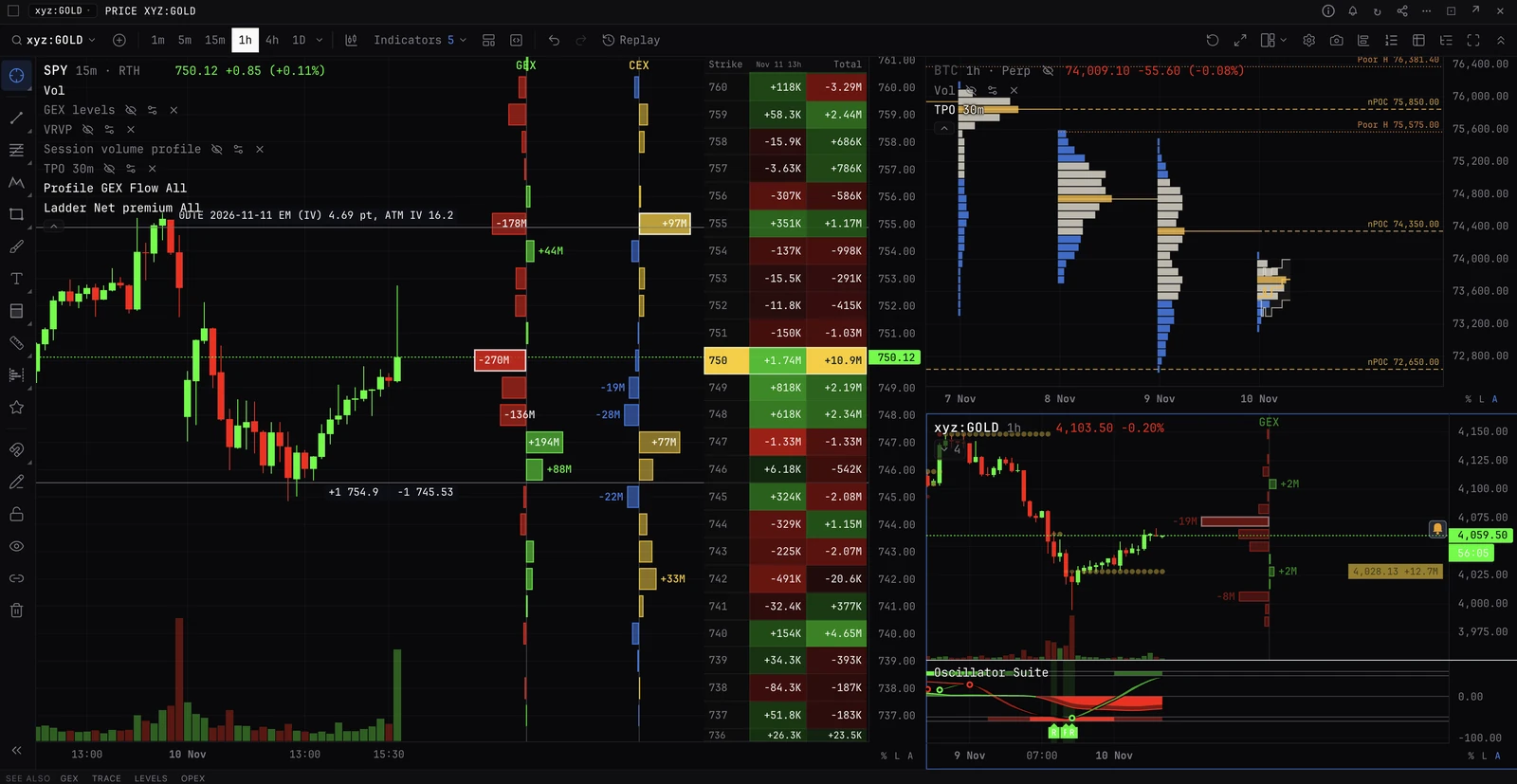
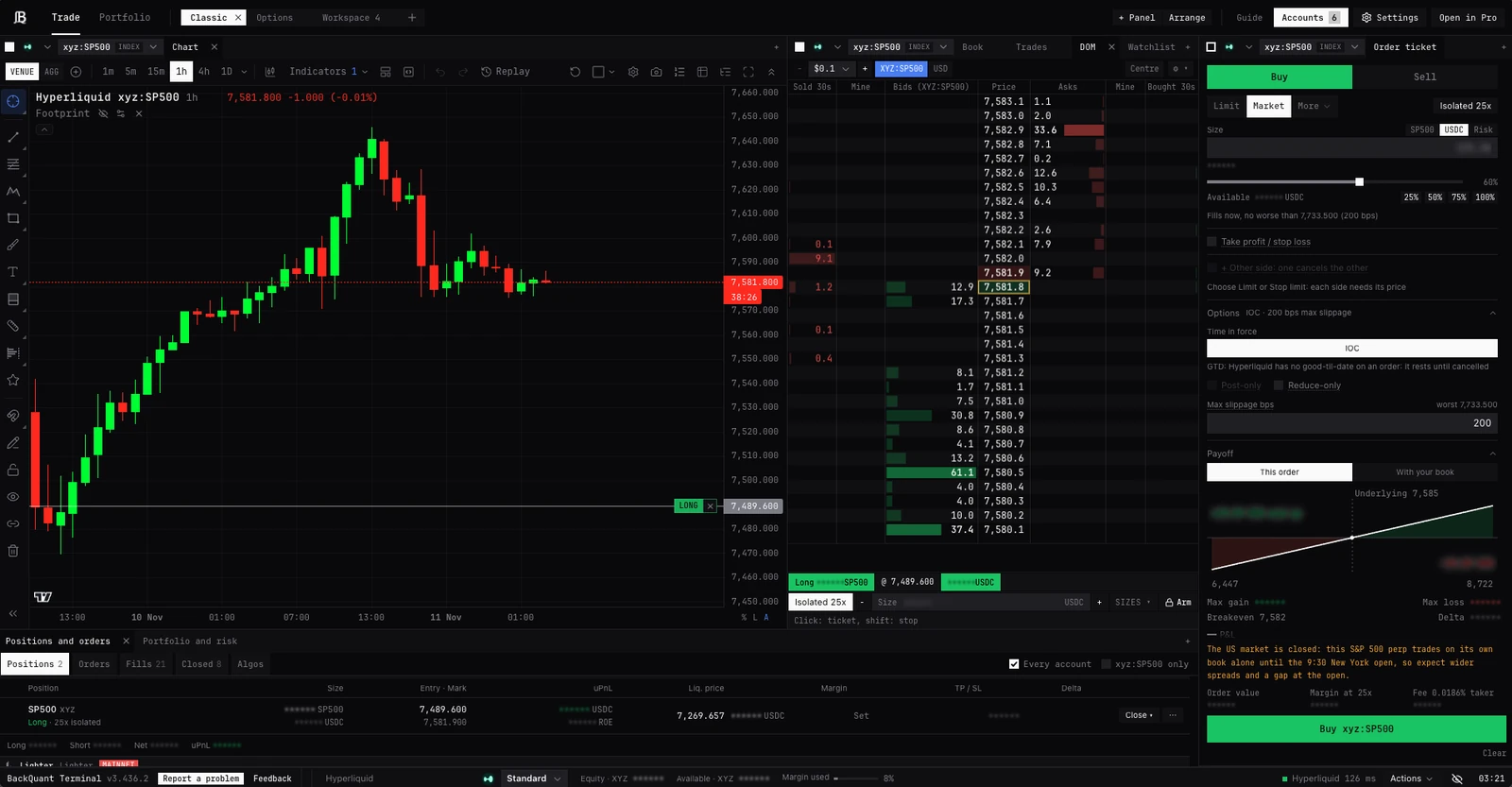
The trade page
TRADE, /trade, or Trade on the Pro terminal. Every panel picks its own account and market; workspaces keep your layouts.
TRADE/trade, and Trade in the Pro terminal
Where you trade
The trading docs use these names, and only these, for the places you trade.
- The trade page
- /trade, or TRADE. One screen of trading panels that you arrange in workspaces; every panel picks its own account and market. This page.
- The Options workspace
- One of the trade page’s starting workspaces, built around the option chain. Classic and Custom are the others.
- The Pro terminal
- BackQuant’s analytics terminal: tabs of panels you open by typing commands. Every trading panel opens there too, by its command (XDOM, TICKET, BLOTTER and the rest).
- A trading desk
- Linked trading panels (the market bar, chart, DOM ladder, ticket, trades and Positions and orders) in a tab of the Pro terminal. EXEC opens one; EXEC OPTIONS opens one laid out for options; Trade, then Trading desk in Pro, opens one on the trade page’s account and market. Commands such as BUY, CLOSE and AUTOHEDGE act on the open trading desk.
- The Portfolio page
- /portfolio, or Portfolio at the top of the trade page: every account as one book. See Portfolio.
Getting there
- TRADE, /trade
- Opens the trade page.
- Trade, on the Pro terminal
- Trade page, or Trading desk in Pro: a trading desk in a Trading tab, with chart, book, ticket and positions beside your analytics. It opens on the account the trade page trades, or your only account, and on the trade page’s market where it trades that account.
- Open in Pro
- From the trade page: this market and account on a trading desk in the Pro terminal, the same trading desk each time. One-click trading starts locked there.
Across the top
- Trade, Portfolio
- The two pages.
- Workspaces
- Classic, Options and Custom to start. + adds one, double-click a name to rename it, x removes one (asked first; the last one stays). Each keeps its own layout on this device.
- + Panel
- Any panel, grouped Trading, Market and Portfolio, each with a line on what it is for. A market panel already on the page comes on a market of its own.
- Arrange
- Add a market (chart and ticket), Undo the last change, Reset to the starting layout.
- Guide
- Every panel and what it does. Show brings one to the front, + opens how to read it, and Add puts one on the page.
- Accounts
- Your exchange accounts, with their count. See Exchange accounts and keys.
- Settings
- Theme, accounts and keys, order confirmations, notifications and hotkeys. See Trading settings.
- Open in Pro
- This market and account on a trading desk in the Pro terminal.
Workspaces
| Workspace | Main panel | Beside it | Below |
|---|---|---|---|
| Classic | Chart | Book, trades, DOM, watchlist as tabs; ticket full height on the right | Positions, portfolio |
| Options | Option chain | Ticket, with book, trades and watchlist under it | Positions, portfolio, chart, structures, RFQ as tabs |
| Custom, and every new one | Chart | DOM, book and option chain as tabs; the ticket | Positions and portfolio |
- Main panel
- Chart
- Beside it
- Book, trades, DOM, watchlist as tabs; ticket full height on the right
- Below
- Positions, portfolio
- Main panel
- Option chain
- Beside it
- Ticket, with book, trades and watchlist under it
- Below
- Positions, portfolio, chart, structures, RFQ as tabs
- Main panel
- Chart
- Beside it
- DOM, book and option chain as tabs; the ticket
- Below
- Positions and portfolio
Moving panels
- Move
- Drag a panel by its header. Drop it on another’s middle to join them as tabs; drag a tab out to give it a panel of its own.
- Resize
- Drag any shared edge.
- Close
- x on its tab. The page always keeps one order ticket.
- + in a header
- Adds a panel there, as a tab.
- Tab names
- Where a tab’s whole name would be cut, the tabs show short names (Ticket, Book, DOM, Pad, Chain, Positions, Portfolio), the whole name on hover. The whole names come back once there is room.
Each panel’s account and market
The chart, ticket, book, trades, DOM, trade pad, option chain, structures and RFQ each show, at the start of their header, a colour square, the account and the market. Positions and portfolio are the account’s on every market and show none.
- Account
- The exchange’s mark and the account. With one account on that exchange the chip is the mark and its caret alone, the name on hover; with several there it names the account. Choose any connected account, listed under its exchange: the panel’s orders go there.
- Market
- The market it trades. One click chooses another that account lists.
- Colour square
- Its market link. Panels of one colour share a market and account, as the Pro terminal’s colours do. Click it for Main, each colour in use and what it is on, Follows, and New market.
- Main
- The page’s own market and account. An account or market chosen in a Main panel’s header changes it for every Main panel.
- A colour
- Red, Amber, Green, Blue, Purple or Pink: a market of its own, on any exchange account. Choosing in a coloured panel moves that colour, and its panels with it. Choosing in a Main or Follows panel gives that panel a colour of its own, and the rest of the page stays where it was. Six at most.
- Follows
- A hollow square: trades the market of the chart, book or DOM ladder you last clicked. A new ticket starts on Follows, so it loads the market you click in; other panels start on Main.
- Another exchange
- A colour moved to an account on another exchange finds the same coin and kind of market there.
- Add a market
- In Arrange: a chart and a ticket on the next free colour, as a row under the rest.
The footer line
- Report a problem
- Tells BackQuant what went wrong: the exchange, the market, the connection and whether it could trade go with it, never a key or an address.
- Feedback
- Anything else.
- The account
- The account of the panels you last used, by name: each panel chooses its own account in its header, so the footer has no picker. Beside it: margin mode, Equity, Available and Margin used, the connection with its round trip in ms, and Actions to cancel, close, flatten or start Auto-hedge. See Market bar and Actions.
- Market bar
- Not on the page to start. Added from + Panel, it carries the account line and the market as a panel of its own, and the footer leaves its account line to it.
- The clock
- At the right end.
The panels
- Chart
- See Trading on the chart.
- Order ticket (TICKET)
- See The order ticket.
- Order book (XBOOK), Trades (XTAPE)
- The exchange’s own book and trades, not the OB, DOM or TRADES market-data panels. See Order book and trades.
- DOM ladder (XDOM), Trade pad (XPAD)
- One-click trading. Not the DOM command (Depth of Market), which is market data. See DOM ladder and Trade pad.
- Option chain (XCHAIN), Structures (STRUCT), RFQ
- See The option chain, Structures and packages, and Block RFQ.
- Positions and orders (BLOTTER)
- Your positions, orders, fills, closed trades and algorithms. See Positions and orders.
- Portfolio and risk (PORT)
- See Portfolio.
- Watchlist (XWATCH)
- Your starred markets, live. See Watchlist and markets.
- Market bar (XBAR)
- See Market bar and Actions.
Portfolio sections as panels
Under + Panel, Portfolio: the Portfolio page’s sections, each as a panel of the trade page. A Close or a Hedge in them loads the ticket on this page, and a market opened from them stays on this page.
- Portfolio summary
- Positions, every account; Open orders, every account; Algorithms, every account
- Accounts; By coin; By exchange
- Risk (curve, grid, value at risk)
- Profit by venue; Equity curve; Move collateral
Questions
Can one page trade two exchanges at once?
Yes. Give a panel a colour and choose an account on another exchange in its header: that colour’s chart, book, DOM and ticket trade there, and the Main panels stay where they were.
Why does the footer show an account I am not looking at?
It shows the account of the panels you last used. Click in a panel on another account and the footer follows.
Do my layouts follow me to another computer?
No. Workspaces are kept on this device.
Can I take the ticket away?
One ticket always stays on the page. Others can be closed.
More
- Set up a workspace. Step by step.
- Market bar and Actions. The footer line and the Actions menu.
- Trading settings. Everything under Settings.