

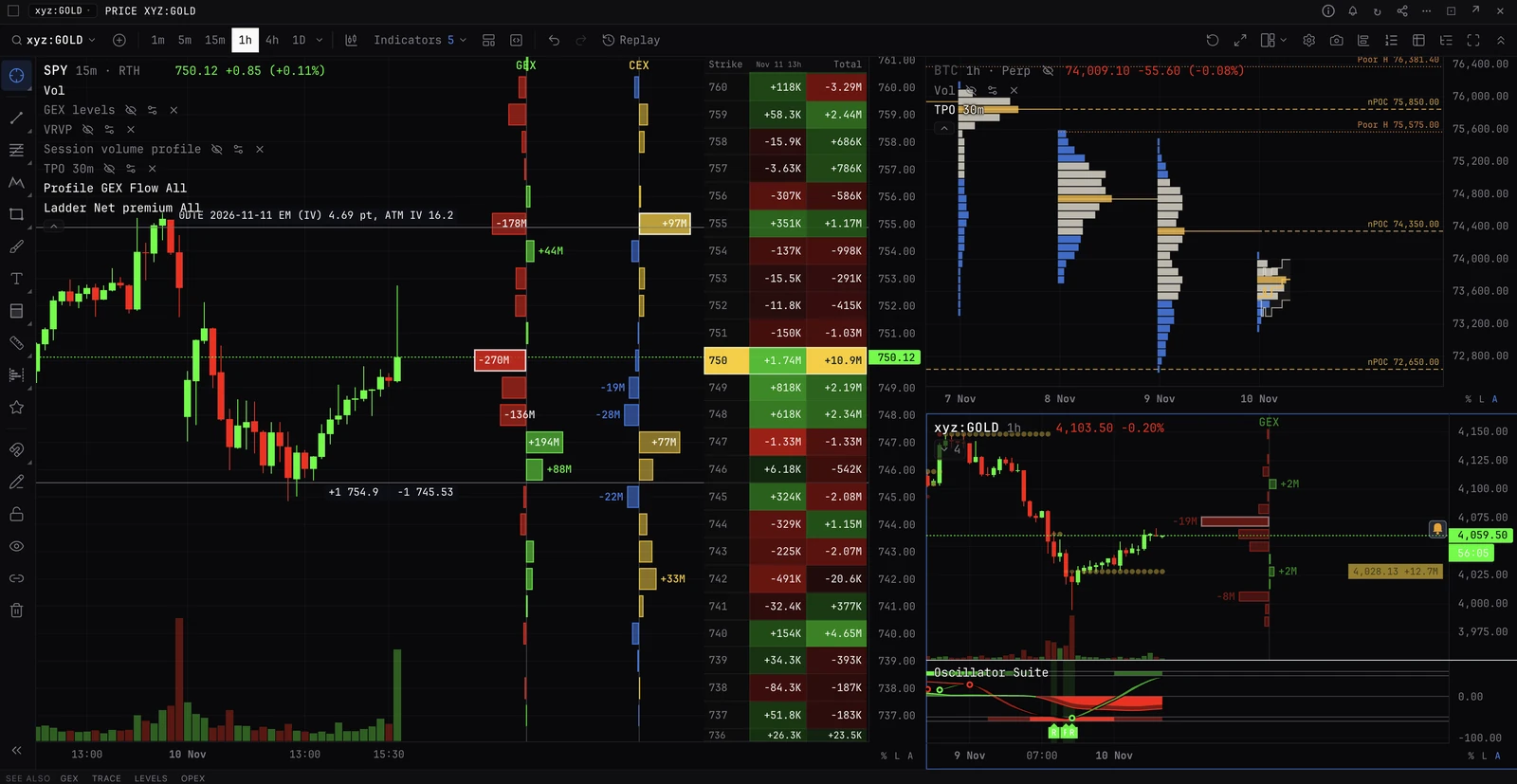
Set up a workspace
The trade page’s layouts: start from Classic, Options or Custom, add your own, and arrange the panels.
The starting workspaces
- Classic
- Chart; Order book, Trades, DOM ladder and Watchlist as tabs; the Order ticket on the right; Positions and orders and Portfolio and risk under the chart.
- Options
- Option chain and ticket; the book, trades and watchlist; below them positions, portfolio, a chart, Structures and RFQ.
- Custom
- Chart; DOM ladder, Order book and Option chain as tabs; the ticket; positions and portfolio along the bottom.
Steps
- 01Press + beside the workspace tabs: a new workspace opens with the Custom start.
- 02Double-click its tab to rename it.
- 03+ Panel, on the right, adds a panel: Trading, Market or Portfolio.
- 04Drag a panel by its header to move it. Drop it on the middle of another to join them as tabs. Drag a shared edge to resize. The x closes it; the page always keeps one order ticket.
- 05Each panel chooses its own account and market in its header. The small colour square at the start of the header is its market link: panels on the same colour trade the same market and account, and move together. Click it to give a panel a colour of its own.
- 06Arrange, on the right, has Add a market (chart and ticket), Undo the last change and Reset to the starting layout.
- 07To remove a workspace, press the x on its tab, then Remove. The last one stays.
Good to know
- Workspaces are kept on this device: they do not follow you to another computer.
- The account’s Equity, Available and Margin used, and the Actions menu, are on the footer line.
More
- The trade page. Every control on the page, the colour squares in full, and every panel.