

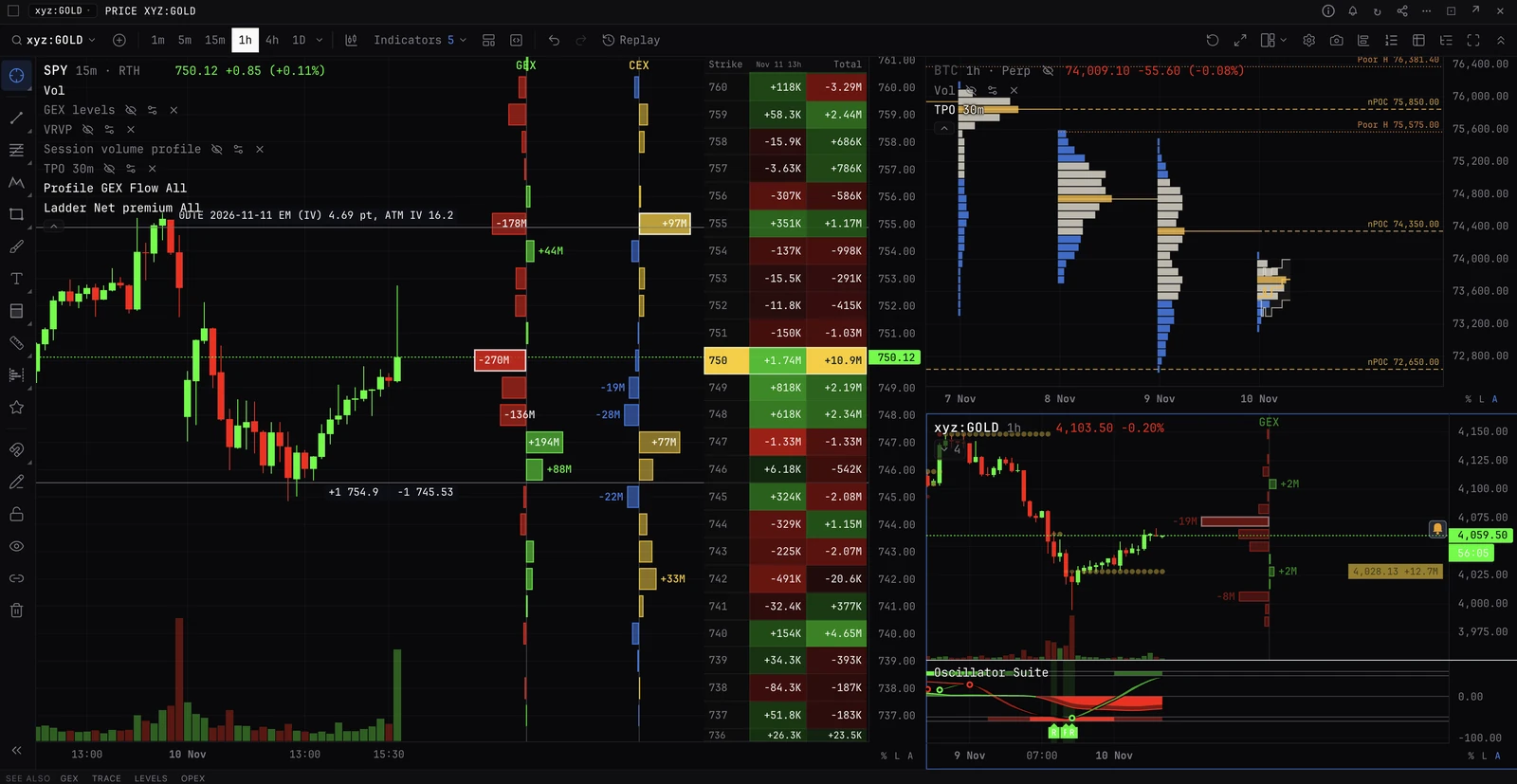
Trade from the DOM or chart
Arm the market and a click sends. Locked, a click only fills the ticket.
Steps
- 01On the trade page, open the DOM ladder tab: beside Order book in Classic, the first tab in a new workspace, or add it with + Panel.
- 02Account and market. Choose them in the DOM ladder’s header.
- 03Leverage. The first button on the order bar. It stays highlighted until you have opened it once on this market.
- 04Size. Type it in Size, or step it with − and +. Sizes holds quick sizes (right-click one to change it), the step, and whether size is in the coin or in dollars.
- 05Arm. Press the padlock, Arm, then Arm in the confirmation. It now reads Armed, and the chart shows ARMED. It stays armed until you lock it again or switch account.
- 06Click a bid row. A buy limit at that price, sent at once. An ask row: a sell. A price at or through the touch still asks first.
- 07Shift+click a row. A stop or take profit that triggers at that price.
- 08Buy, Sell. Under the order bar: the size at market, no worse than the ticket’s max slippage (Deribit and Binance take no cap on a market order).
- 09Your order. Press it in My bids or My asks to cancel it; drag it to another row to move it. ✕ 2 bids or ✕ 1 ask over the column header cancels all of that side. Stops and take profits stay. The line under the ladder then says how each order ended: filled, part filled, cancelled or refused.
- 10Get out. Close: the whole position on this market, at market. Reverse: closed at market, then the same size the other way once it shows flat; if the close does not fill whole, nothing opens. Cancel: your resting orders on this market.
- 11Lock. Press Armed. A reload or a new tab always starts locked.
On the chart
- Right-click a price: Buy limit at, Sell limit at, or a stop at that price, into the ticket. Armed, with a size in the ticket: Buy (size) at (price) now and Sell (size) at (price) now send.
- Drag your order line to move it; the x cancels it. Both ask first unless armed.
- Hold a key and click a price: a buy or sell there, a limit or a stop by which side of the market it is. Set the two keys first in Trading settings, Hotkeys: Hold, click the chart: buy there, and Hold, click the chart: sell there.
- A Ladder in the ticket (More, then Ladder) is drawn on the chart before you send it. Drag its ends to set First price and Last price.
Hotkeys
Trading settings, Hotkeys, then switch on Hotkeys on. Keys act on the market you last clicked. B buys at the bid, S sells at the ask, into the ticket. Armed: Shift+B and Shift+S at market, F closes the position, Shift+R reverses it, C cancels resting orders. Shift+A arms or locks. More actions start with no key: one tick over the bid or under the ask, buy at the ask, sell at the bid, cancel resting buys or sells, close half or a quarter of the position, cancel stops and take profits, and stop loss to breakeven (with its confirmation, armed or not). Click a key box and press a key to set one.
More
- DOM ladder. Every column, the gear, what asks first even when armed, and every hotkey.
- Trade pad. The same buttons without a ladder.
- Trading on the chart. Every line on the chart and what you can do with it.